Unified Clipboard & History
Usually on Linux, you need Ctrl + Shift + C/V to copy’n’paste in the terminal and Ctrl + C/V to do it everywhere else. That’s hard to get used to for anyone who hasn’t been born and bred on Linux! So too is the switch from super to ctrl, if you’re coming from the Mac.
Omarchy tackles both problems with unified clipboard hotkeys that work (almost) everywhere. They are:
| Hotkey | Command |
|---|---|
| Super + C | Copy |
| Super + X | Cut |
| Super + V | Paste |
| Super + Ctrl + V | Clipboard history |
Note that most agent harnesses will use Ctrl + V for pasting images, but Super + V for pasting text.
Clipboard history #
The clipboard history is provided by the Omarchy shell and works for both text and images. You trigger it by Super + Ctrl + V, select your entry with return, and then that’ll be placed on the clipboard ready to paste on Super + V.
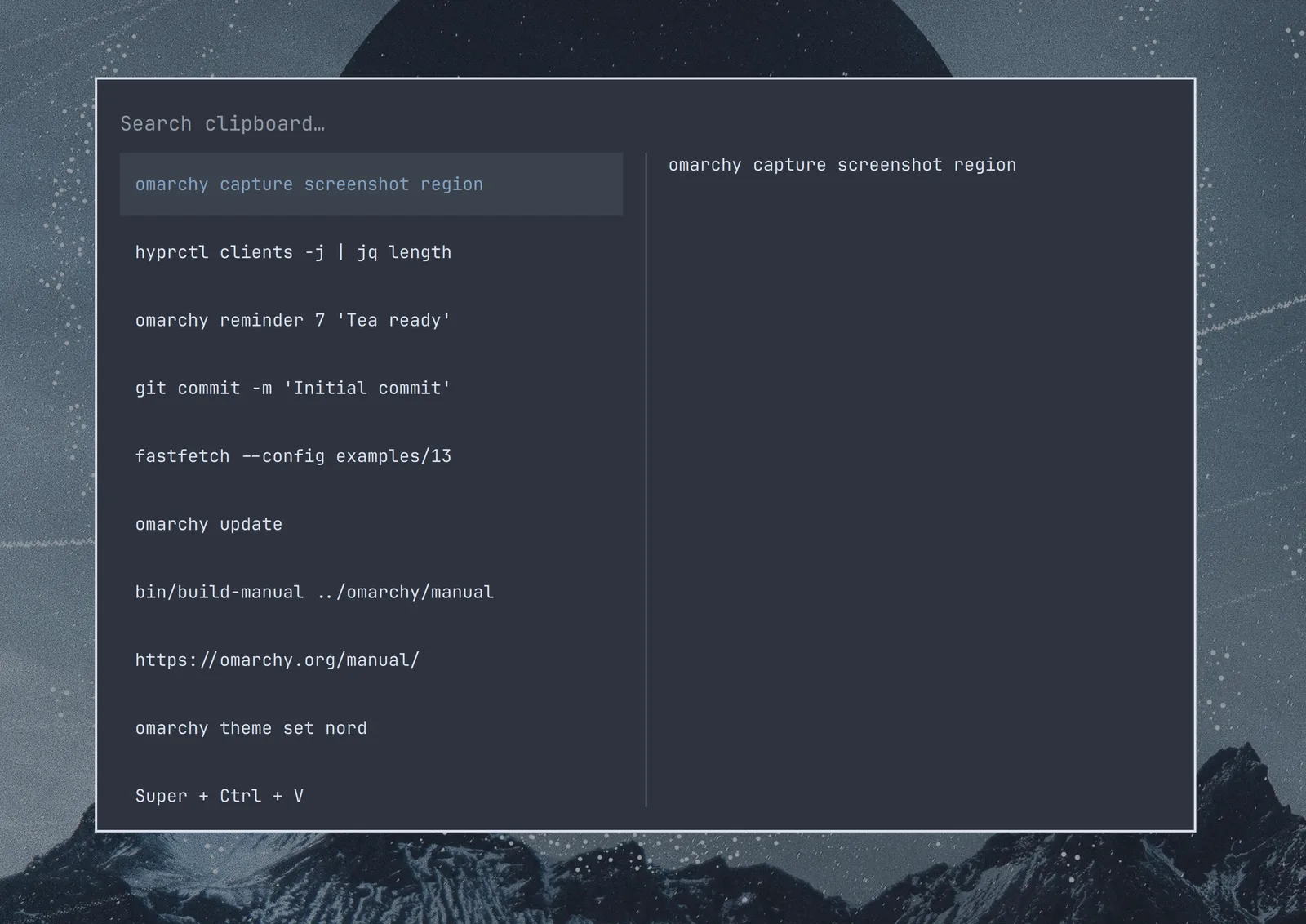
You can also search the history just by starting to type: